How to register as a supplier on Public Contracts Scotland
Create a free Public Contracts Scotland (PCS) supplier account using your email address as the login. Then choose alert categories and locations, and publish a Supplier Finder profile if you want buyers to discover your business. For each opportunity, follow the notice instructions to access documents and submit a response.
Last updated: · TenderNudge
Open PCS supplier registrationWhat you need to register
Have the following details and access ready before you start your registration:
- A working email address to use as your PCS login and contact address.
- Your first and last name, phone number and job title.
- Your organisation name, address, postcode and region.
- Your organisation location for the NUTS field, which identifies the area where it is based.
- A password of 10 to 50 characters with upper and lower case letters, a number and a symbol such as £ or $.
- Your charity or Community Interest Company (CIC) registration number, if applicable.
Registration and first steps
Choose supplier registration
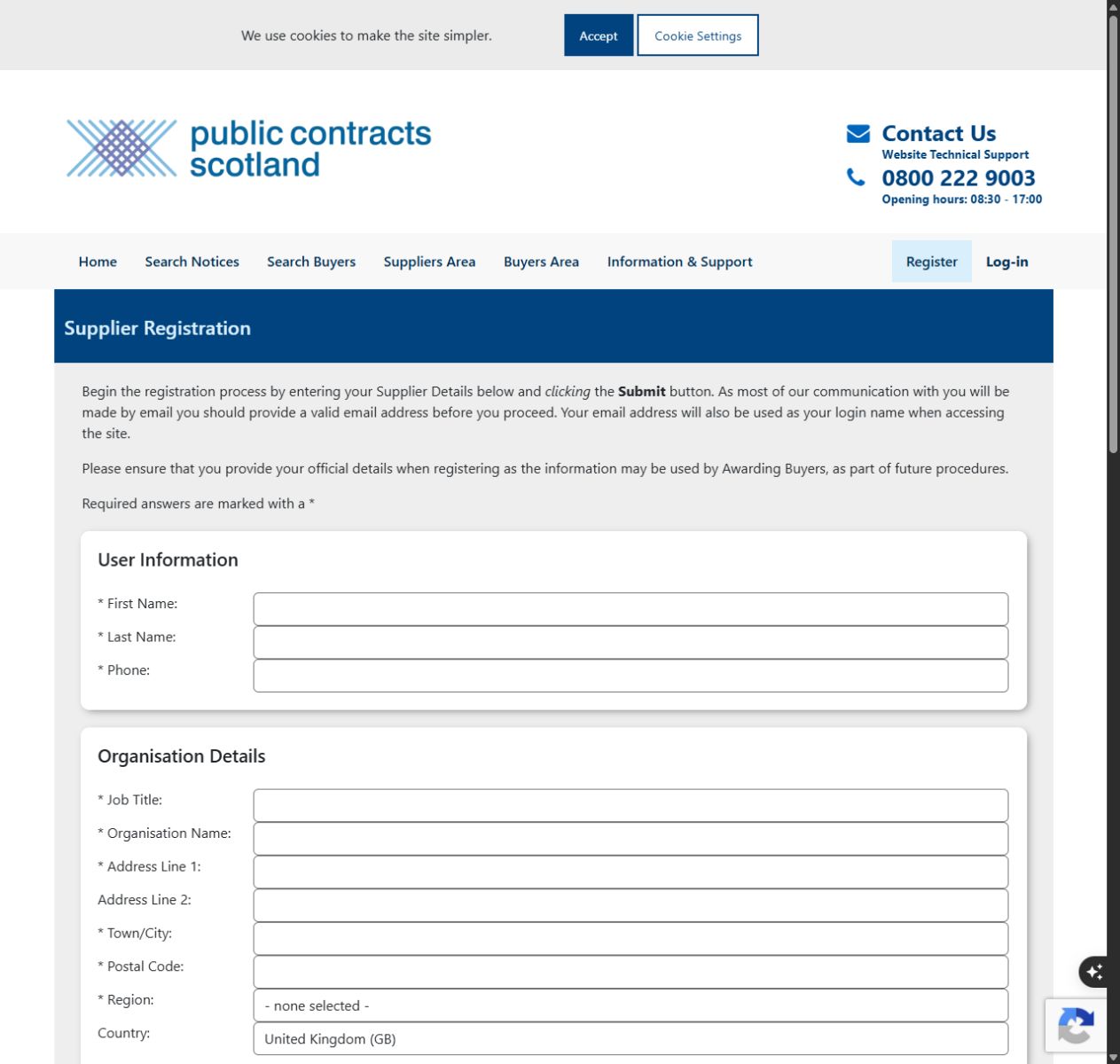
Open the PCS registration page and choose Register as a Supplier. Supplier registration is free.
You can browse public notices without an account. Register to record interest, access attached documents and use supplier features.
Enter your contact and business details
Fill in your name, phone number, job title, organisation name and address. Complete the required postcode, region and NUTS location fields.
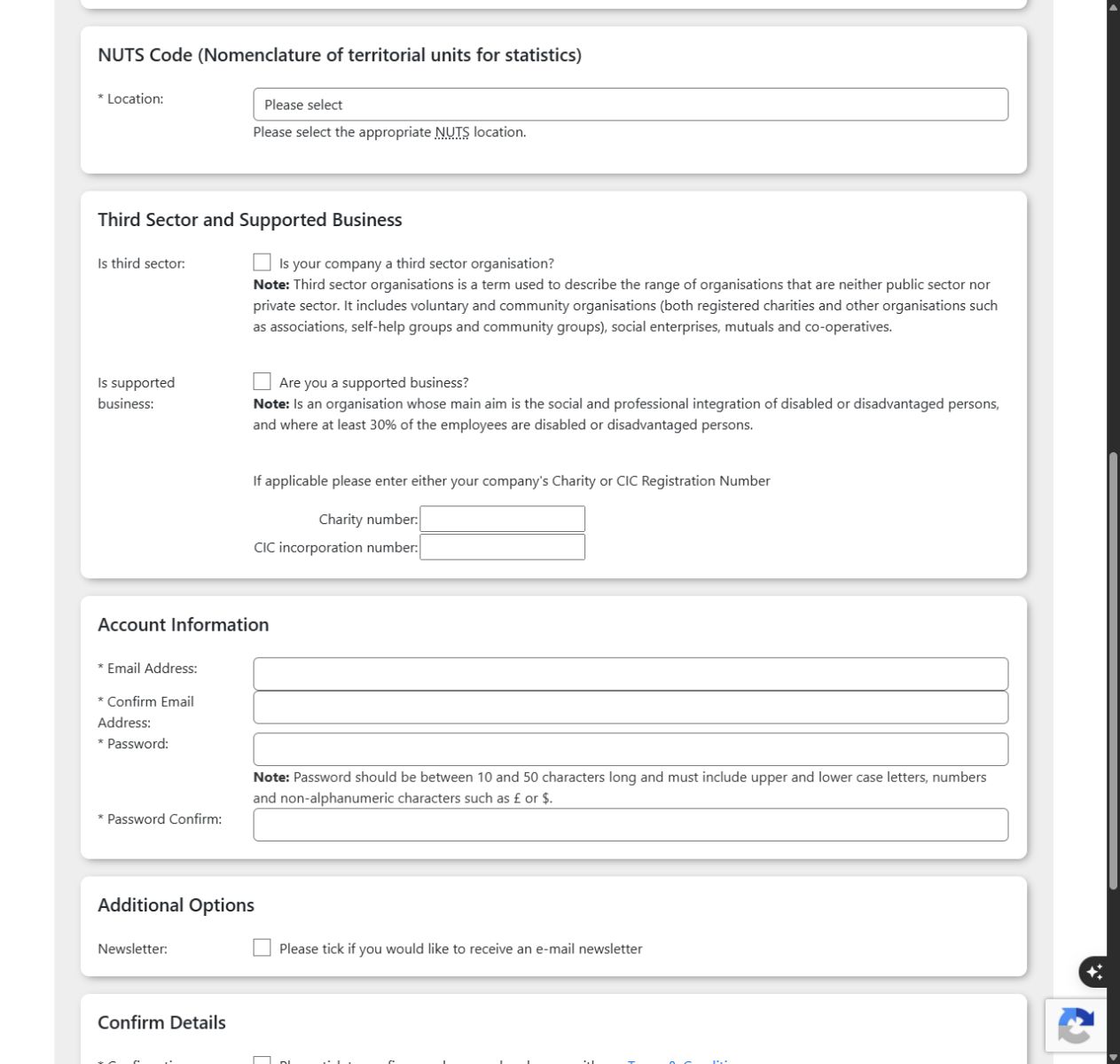
Select the third sector or supported business options if they apply, and enter a charity or CIC number where relevant.
Set your email and password
Enter and confirm your email address and password. Your email address becomes your PCS username.
Read the terms and tick the agreement box when you are ready to accept them, then submit the form. The newsletter option is optional. Follow the account instructions shown after submission.
Choose categories and locations for alerts
Sign in and open Suppliers Area, then Alert Profile under My Profile. Choose the product or service categories that match your business and the places where you can work, then save.
Categories use CPV codes: standard codes for goods, works and services. Search by keyword if you do not know a code. PCS sends alerts for notices matching your selected categories and locations.
Publish a Supplier Finder profile
If you want buyers to find your business, open Supplier Finder Profile from Suppliers Area. Complete the profile, save it and choose Publish.
Describe your services and working areas clearly, and add up to six searchable keywords. This free directory profile is separate from your alerts and can help buyers find suppliers for Quick Quotes.
Access documents and submit your response
Open a relevant notice, sign in and record your interest to access available attachments. Read the documents and check the deadline.
If the buyer uses PCS Postbox, submit your response there. If the notice names another system, follow that route. PCS-Tender is a separate system; follow its account instructions if the buyer directs you there.
For a Quick Quote, open Suppliers Area, then Quick Quotes with your own invited account. Recording interest or receiving an alert does not submit a bid.
Common problems
I can read a notice but cannot open its documents.
Sign in and record your interest in the notice to access attached documents when they are available.
I did not receive an alert.
Check that your Alert Profile is saved and includes the relevant categories and locations. Matching also depends on the categories the buyer assigned to the notice.
A colleague forwarded a Quick Quote, but I cannot open it.
Access belongs to the individual account the buyer invited. Ask the buyer to invite your own account. Use your own login.
Can I add another email address to my account?
Each supplier account belongs to one user and cannot have an additional email address or be linked to another account. Update your account email if needed; colleagues should have their own accounts.
Frequently asked questions
Is supplier registration free?
Yes. PCS supplier registration and Supplier Finder are free.
Does registration qualify my business for a contract?
No. Each buyer assesses responses against the requirements for that opportunity. Quick Quotes are by invitation.
What is a CPV code?
It is a standard code for the goods, works or services a buyer is purchasing. Choose the categories that match what your business supplies.
Are alerts and Supplier Finder required?
No. Set up alerts if you want matching notice emails. Publish a separate Supplier Finder profile if you want buyers to find your business.
Is PCS-Tender the same as Public Contracts Scotland?
No. Follow the notice to the system the buyer uses for documents and responses. If it directs you to PCS-Tender, use that system’s account instructions.