How to register on an In-Tend buyer portal
Follow the tender notice to the buyer's In-Tend portal and register your business there. Complete your company and contact details, select relevant categories and follow the portal's approval instructions. Each buyer has its own portal, so check the buyer name before registering or signing in.
Last updated: · TenderNudge
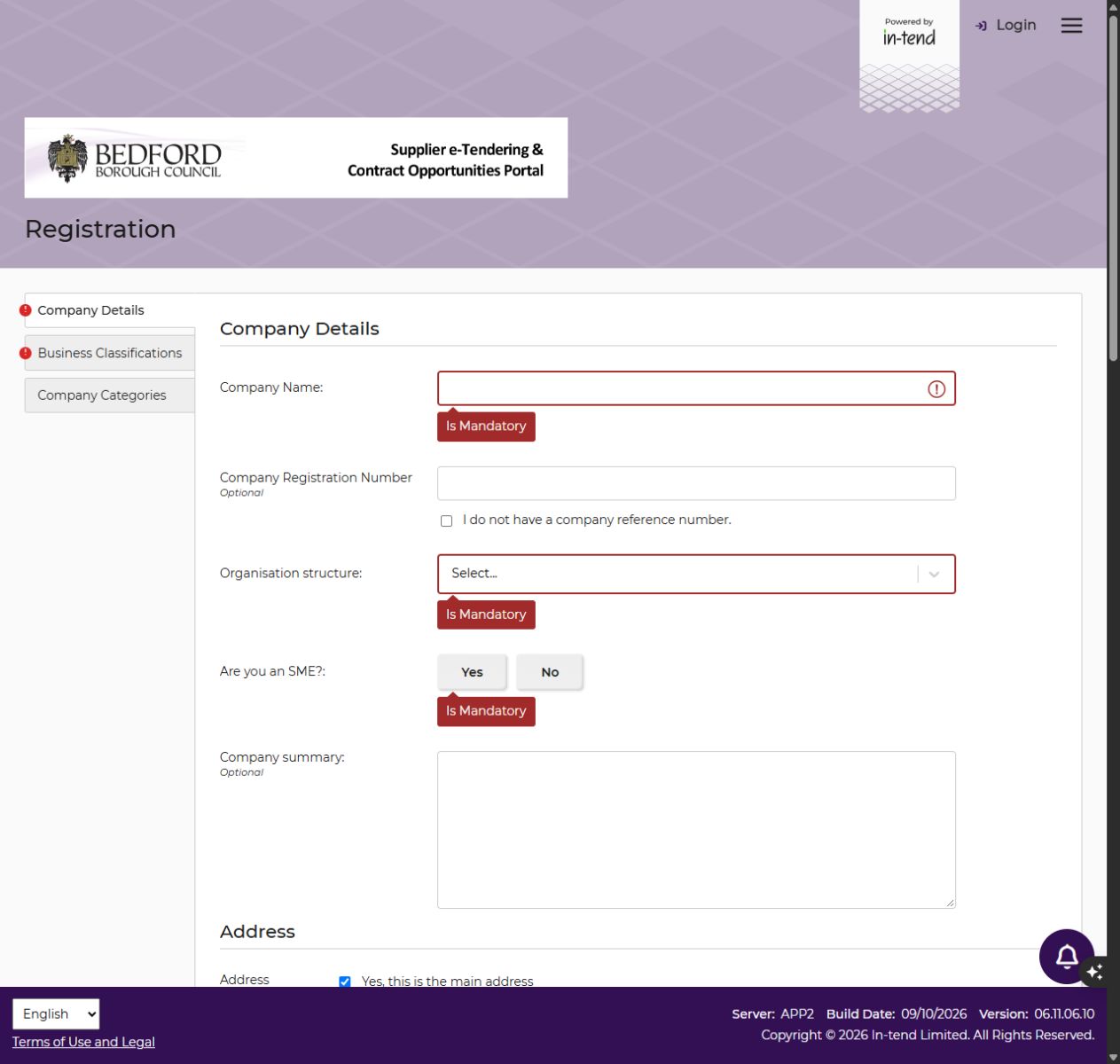
See an example In-Tend registration form (Bedford)What you need to register
Have the following details and access ready before you start your registration:
- The In-Tend portal link for the buyer you want to supply.
- Your business name, address and contact details.
- Your company registration number, if applicable.
- The name and contact details of the person who will manage the account, plus access to their work email.
- A short description of what you supply and the categories that fit your business.
- Permission to register for your organisation.
Registration and first steps
Open the buyer’s In-Tend portal
Follow the link in the original tender notice or on the buyer's procurement website. Check that the portal shows the buyer you want to supply, then select its registration option.
Use that buyer's link for registration and future sign-ins. In-Tend portals can have different addresses and layouts; the Bedford form linked below is one example.
Check whether your business already has an account
Ask colleagues whether your organisation is already registered with this buyer. If it is, ask the existing account contact to add you as a user.
An account on another buyer's In-Tend portal may not give you access here. If you cannot sign in, use this portal's recovery or support options before creating another company record.
Enter your company and contact details
Complete the fields marked as required on your portal. Have your business address, telephone number and main contact details ready. Enter a company registration number if it applies to your organisation and the form requests it.
Use an email inbox your team monitors and follow the instructions for setting your password. Review the contact notification choices so tender messages reach the right person. Add colleagues as individual users where the portal allows it.
Choose categories and complete registration
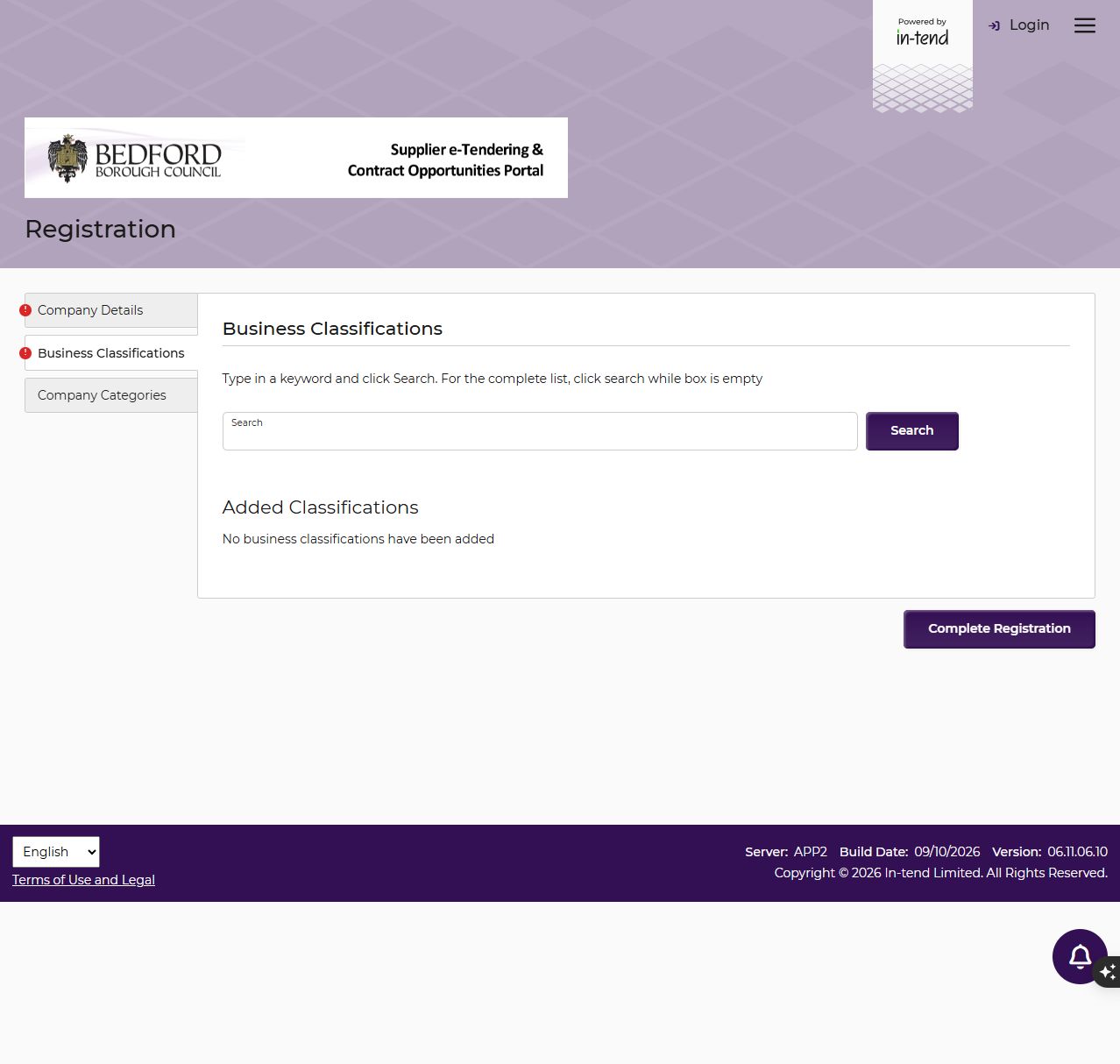
Select the business classifications or company categories that match what you supply. The choices and required fields can differ between buyers, so follow the labels and instructions on your form.
Check your details before completing registration. Relevant classifications help buyers such as Milton Keynes send suitable opportunity alerts.
Follow the approval instructions
Read the confirmation shown after registration and check your email, including spam. Some buyers require approval before you can sign in; Bedford, for example, sends login details by email after approval. Allow time for this before a tender deadline.
Sign in on the same buyer portal and check your company details, contacts and classifications. Update them whenever your business or staff change.
Open the tender and submit your response
Find the opportunity using its title or reference, open it and follow the instructions to express interest and access documents. Read the buyer’s requirements and use the tender’s correspondence option for questions.
Check the deadline, required answers, attachments and any Central Digital Platform information requested. Expressing interest or saving a draft does not submit a bid. Complete the final submission step and keep the confirmation.
Common problems
My login works for another In-Tend buyer but fails here.
Check the buyer name and portal address. Each buyer has its own site, and registration on one may not cover another. Use this portal’s password recovery or ask its support team whether you need an additional user or a new registration.
My company is already registered.
Ask the existing account contact to add you. If that person is unavailable, contact the buyer’s procurement team or portal support for help accessing the company account.
I have not received an approval email.
Check the registered inbox and spam folder, then use the buyer’s or portal’s support details. Register well before a tender deadline so there is time to resolve access problems.
I am not getting relevant alerts.
Check your contact’s email notification choices and the business classifications saved for your company. Select categories that match what you supply and check the buyer’s opportunity list directly as well.
Frequently asked questions
Is buyer portal registration free?
In-Tend buyer portals offer free supplier registration. Use the buyer’s own registration link. Separate paid In-Tend services, such as Sell2UK, are optional services with their own terms.
Can I register without a company number?
Check the options on your buyer’s form. Bedford, for example, makes the company registration number optional and provides an option for organisations without one. Choose the organisation type that accurately describes your business.
Does registration make me an approved supplier?
Portal registration gives you account access. Each tender has its own eligibility and qualification requirements, and registration does not guarantee an invitation or contract.
Which In-Tend portal should I register on?
Use the portal for the buyer you want to supply. Follow the link in the tender notice or on the buyer's procurement website, and check the buyer name before registering.
Official links and help
- Bedford buyer portal and registration instructions
- Bedford registration form — an example buyer portal
- Milton Keynes tender opportunities and alerts
- Milton Keynes buyer portal
- Cardiff University procurement information
- Cardiff University buyer portal
- Sandwell tender opportunities
- Sandwell buyer portal
- In-Tend FAQs: accounts and company contacts
- In-Tend buyer portals and Sell2UK information