How to register as a supplier on ProContract
Open ProContract’s free registration page and start with your organisation name and email address. Complete the registration, follow the emailed confirmation instructions and finish your profile when you sign in. Set categories and supply regions for alerts, then follow each tender’s instructions to submit a response.
Last updated: · TenderNudge
Open ProContract registrationWhat you need to register
Have the following details and access ready before you start your registration:
- Your business name, address and contact details.
- Access to the work email you will use for registration and tender messages.
- Your company registration and VAT numbers, if applicable.
- The name and contact details of the person who will manage the account.
- A short business description, relevant keywords and the categories and regions you can supply.
- Permission to register for your organisation and accept the displayed terms.
Registration and first steps
Open the free registration page
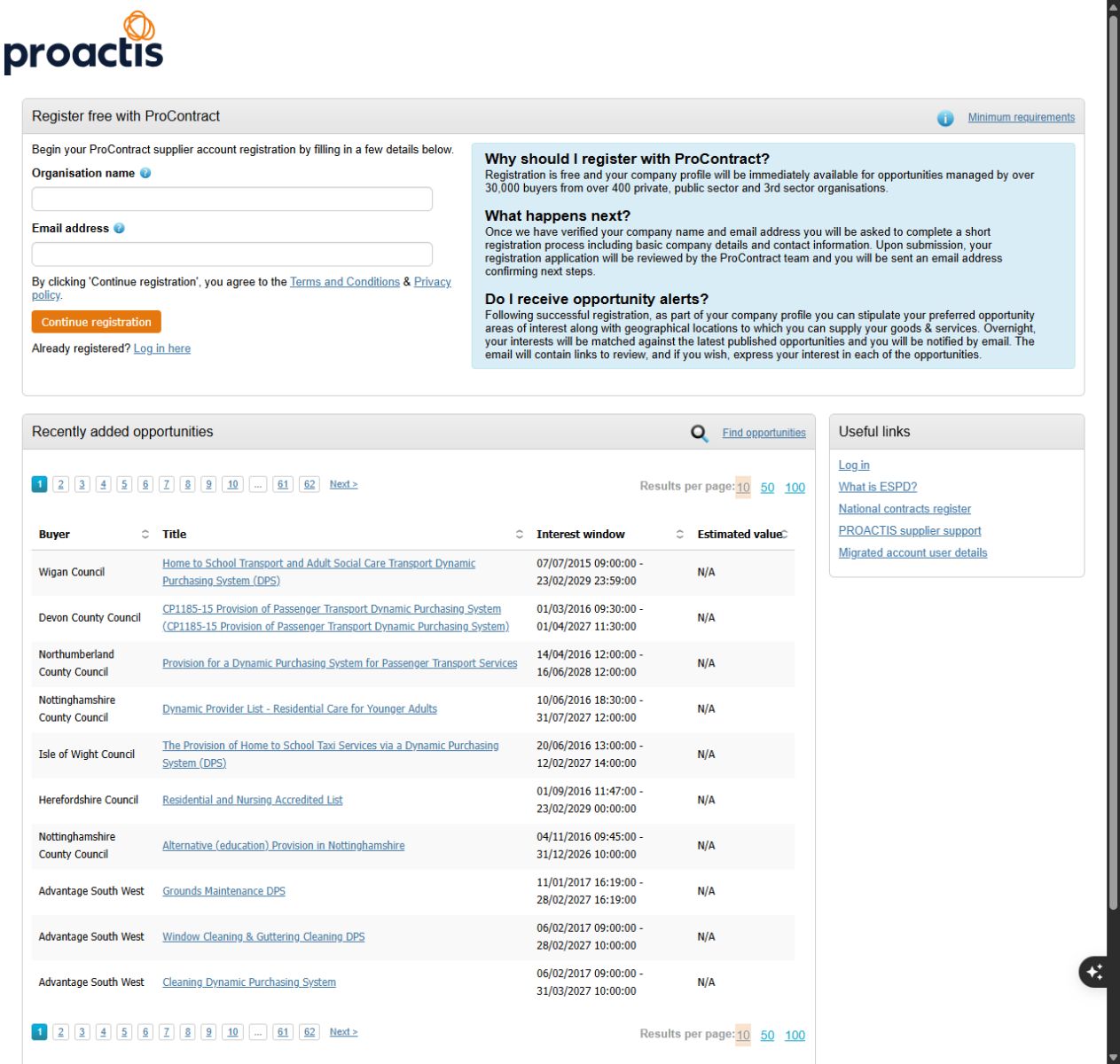
Follow the buyer’s ProContract link or use the registration link below. Check with colleagues for an existing company account before starting. Enter your organisation name and email address on the first page.
Read the linked terms and privacy information before choosing Continue registration: continuing accepts them. Follow the checks for your organisation name and email address.
Complete your business and contact information
Follow the registration form and fill in the fields marked as required. Enter accurate company and main contact details, including your registration or VAT information where applicable.
Choose a person who can manage the company profile and respond to tender messages. Use a monitored inbox and follow the security instructions shown for your login. Give colleagues their own user access where the portal allows it.
Describe your business and choose alert interests
Write a clear description of what your business supplies and add relevant keywords where requested. Complete the business classifications and other required profile fields shown on the form.
Choose the opportunity categories and regions that match your services and delivery area. Save your selections. Buyer supplier lists can have separate classifications, so also check the choices specifically used for opportunity alerts.
Submit registration and confirm your email
Review your details and submit the registration. ProContract reviews applications, so check the registered inbox and spam folder for the next steps.
Follow the email confirmation link before signing in. You must confirm your email before using the account and making your company profile visible to buyers. Use the login details and dashboard link provided, then complete any remaining registration steps on first sign-in.
Check your profile and alert settings
After signing in, review your contact details, opportunity categories and supply regions. ProContract matches these choices against newly published opportunities overnight and emails links to matches.
Update your interests when your business or delivery area changes. Check the opportunity list directly too, because alerts depend on your profile selections and the buyer’s classifications.
Find an opportunity and submit a response
Search the opportunity list or follow an alert. Sign in to express interest and open the tender’s documents and response instructions.
Complete every required answer and attachment, including any Central Digital Platform documents the buyer requests. Check the closing date and finish the tender’s final submission action. Keep its confirmation: expressing interest and saving a draft do not complete a bid.
Common problems
My organisation name or email is already registered.
Ask your organisation’s account holder about existing access. ProContract’s entry form does not allow duplicate organisation names or email addresses. If you cannot reach the account holder, use the portal’s supplier support link.
I submitted registration but cannot sign in.
Check for the registration email and follow the email confirmation link. If no update arrives within 48 hours, check spam and use the supplier support link on ProContract’s registration next steps page.
I have forgotten my username or password.
Use Forgotten your username or password? on the login page. If your account was migrated from ProContract Version 2, follow the first-time login instructions shown there.
The alerts do not match my work.
Review the opportunity categories and supply regions in your profile. Check the settings used for email alerts as well as any separate buyer supplier lists. Search the opportunity list directly while adjusting your selections.
Frequently asked questions
Is ProContract registration free?
Yes. ProContract offers free supplier registration.
Is every Proactis supplier login the same?
No. Use the ProContract link in the buyer’s notice, usually on procontract.due-north.com. Proactis offers other supplier products, so check the portal before registering or signing in.
Can I use one ProContract profile for different buyers?
Your ProContract supplier profile is available to participating buying organisations. Each tender still has its own participation and response requirements. Other tender platforms need their own accounts.
Does expressing interest count as a bid?
No. Expressing interest gives you access to the next steps. Complete and submit all required responses before the tender deadline.
Official links and help
- ProContract free supplier registration
- Registration next steps and email confirmation
- ProContract login and account recovery
- ProContract opportunity search
- Supplier help: registration
- Supplier help: contact information
- Supplier help: company information
- Supplier help: business descriptions and classifications
- Supplier help: categories, regions and alerts
- Proactis supplier application information
- ProContract guidance on Central Digital Platform documents