How to register as a supplier on Find a Tender
Use GOV.UK One Login to sign in to Find a Tender, then register your organisation as a supplier. Complete your core supplier information when a buyer requires it and share it using the code or file they request. You can search notices without an account.
Last updated: · TenderNudge
Open Find a TenderWhat you need to register
Have the following details and access ready before you start your registration:
- Your own work email address, with access to its inbox.
- A UK mobile phone or an authenticator app for GOV.UK One Login security codes.
- Your registered business name and address, plus your Companies House number or another registration number if you have one.
- An organisation contact email address that the relevant colleagues can access.
- A new password for GOV.UK One Login, if you do not already have an account.
- For supplier information later: accounts, qualifications or trade assurances, ownership and control details, and any relevant exclusion information.
Registration and first steps
Open Find a Tender
Open the official Find a Tender website and select Sign in or register an account.
Find a Tender includes the Central Digital Platform (CDP), where you register your organisation and keep core supplier information. Contracts Finder uses a separate account service.
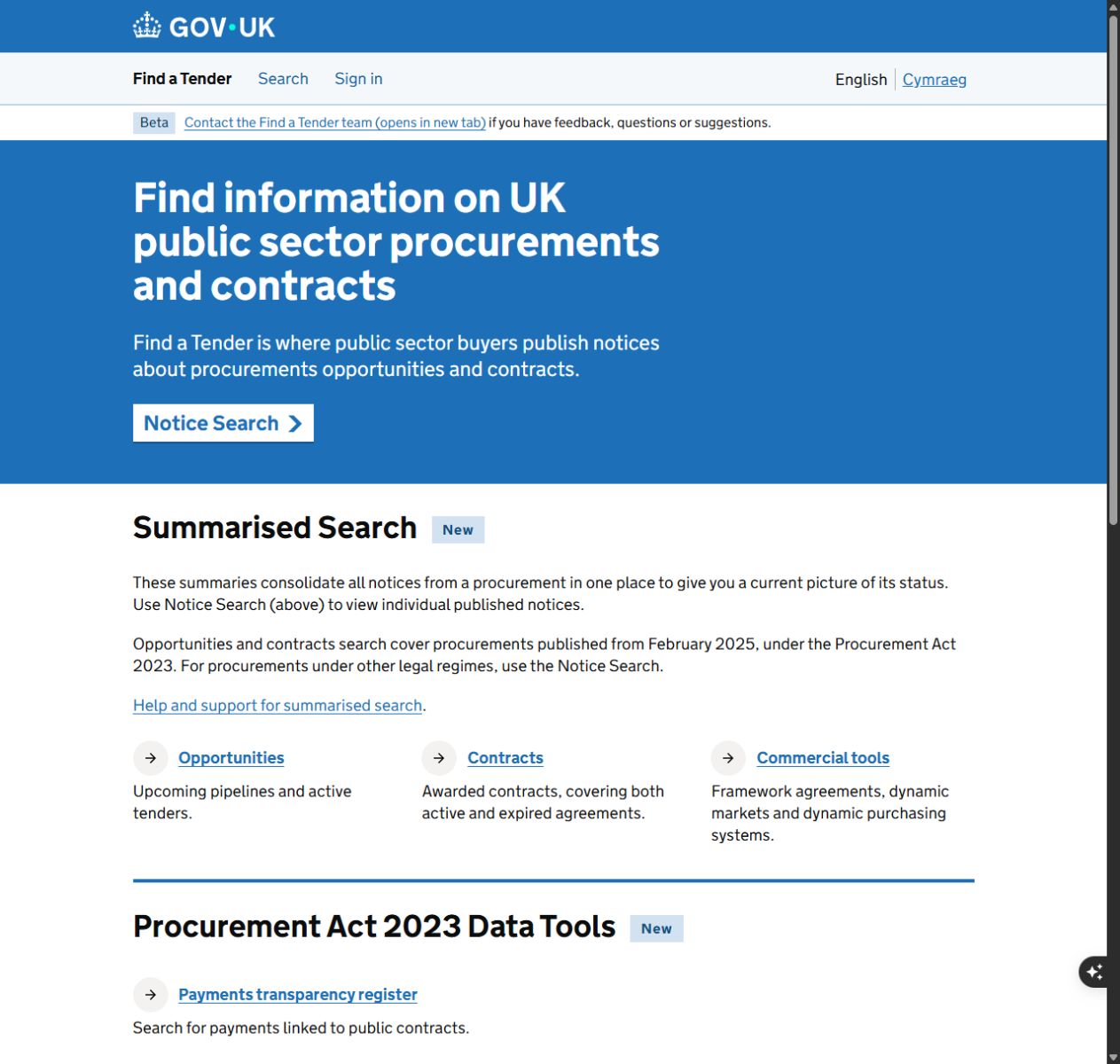
Sign in or create your GOV.UK One Login
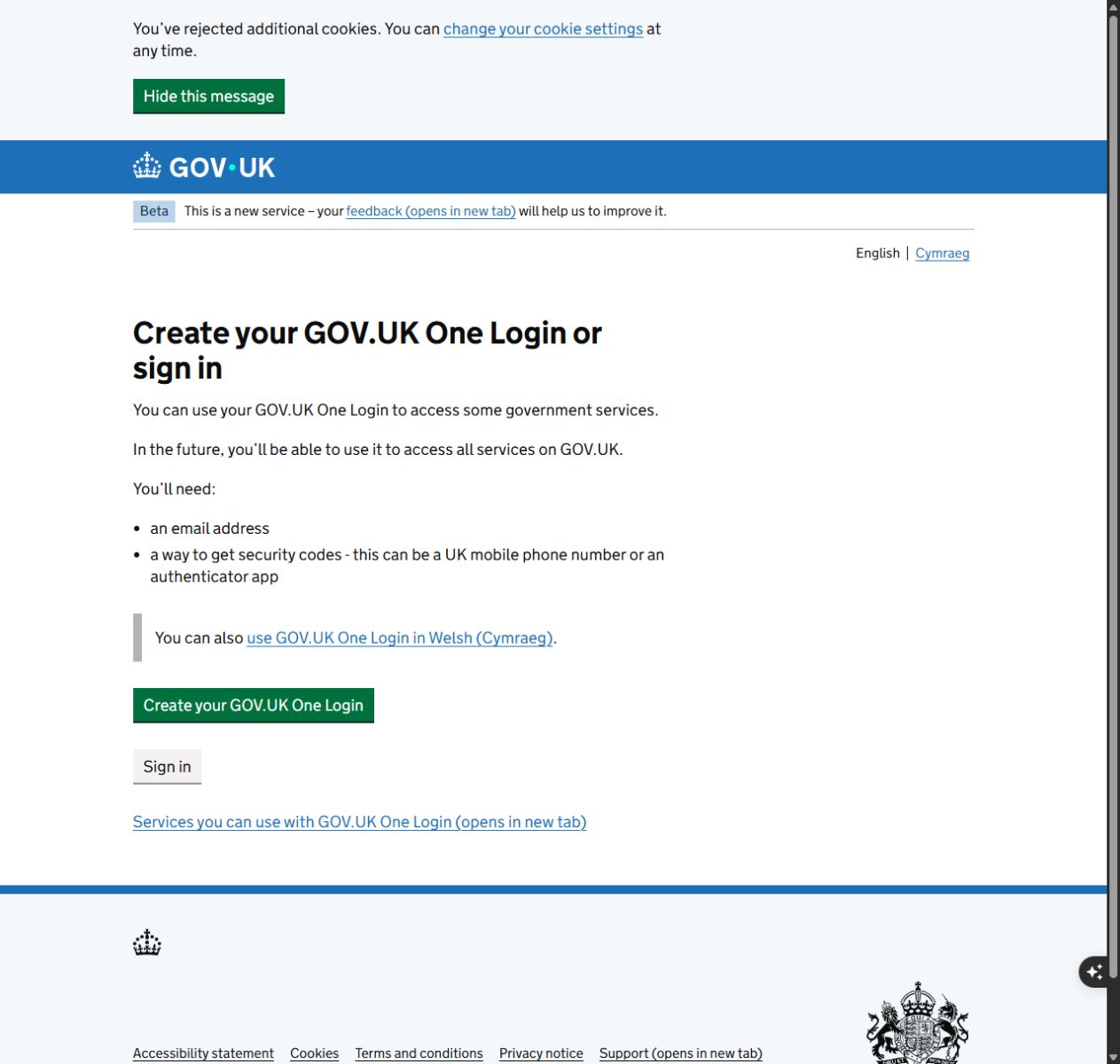
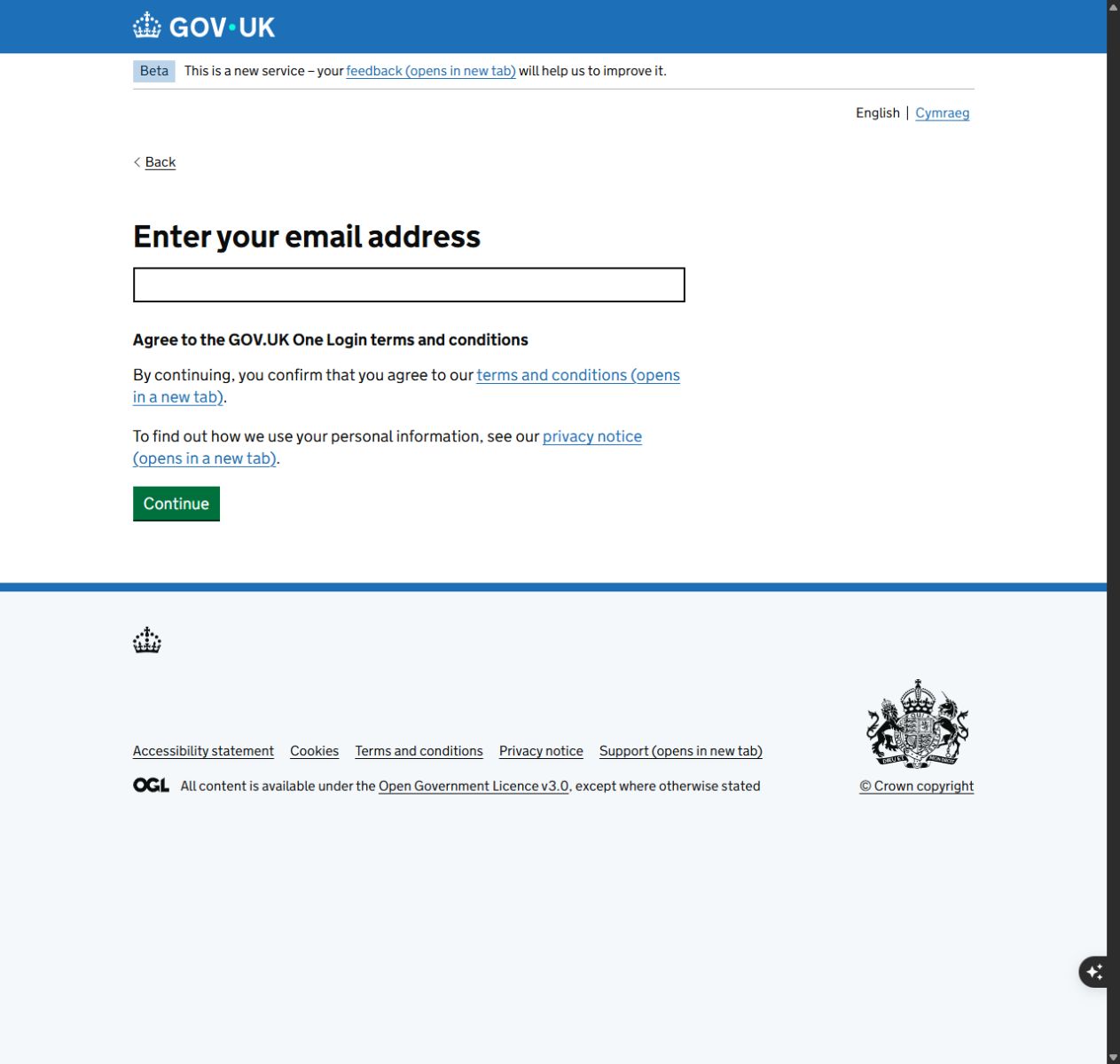
Choose Sign in if you already have GOV.UK One Login. Otherwise choose Create your GOV.UK One Login and enter your own email address.
Follow the prompts to verify your email, create a password and set up security codes by text message or authenticator app. This creates your personal login; you register the business in a later step.
Complete your user details
Return to Find a Tender and follow the user registration prompts, including your first and last name.
Check whether a colleague has already registered your organisation. If so, ask its administrator to arrange your access to the existing record.
Register your organisation as a supplier
From My account, choose Register an organisation, then Supplier. Enter your Companies House number if you have one, or choose the alternative identifier option that applies.
Check the business name and address, add the organisation email and save your details. Keep the organisation identifier handy: buyers may ask for it, and it is different from a share code.
Complete your supplier information
Open your organisation and choose Complete Supplier Information. Work through the questions about your business, connected persons, qualifications, trade assurances, exclusions and finances.
Connected persons include people associated with ownership or control of the business. Use the help for each question to decide what applies, and check when the buyer needs the information completed.
Share supplier information with the buyer
When asked, choose Share my information, then Create a share code. Review the declaration and confirm it when you are authorised and the details are accurate.
Give the buyer the code or supplier information file they request. If your information changes, update it and create a fresh code or file.
Find a notice and follow its application route
Search for relevant notices. If you want Find a Tender email alerts, sign in and set up saved search criteria and notifications.
Open the original notice and check the documents, deadline and instructions. The buyer may use another portal for questions and bids. Submit your response through the route they specify and keep the submission confirmation.
Common problems
My Contracts Finder login does not work here.
Find a Tender uses GOV.UK One Login. Open Find a Tender and use its sign-in route; Contracts Finder uses the separate Supplier Registration Service.
My business has no Companies House number.
Choose the alternative registration number option that fits your organisation, or the option for having no applicable number. Use your own organisation details.
I cannot create a share code.
Check that the required supplier information is complete, then follow the declaration and sharing prompts. Use Find a Tender support if you still cannot continue.
The notice sends me to another website.
Follow the link in the original notice. Buyers can use a separate portal for documents, questions and bids, so you may need an account on that portal too.
Frequently asked questions
Is Find a Tender free?
Yes. Public searches and the Central Digital Platform alert service are free. TenderNudge is a paid service that brings keyword-matched opportunities from major UK tender sources into one weekday email.
Is my organisation identifier the same as a share code?
No. The identifier identifies your organisation. A share code gives a buyer access to the supplier information you have declared and shared. Provide whichever the buyer requests.
Does sharing supplier information submit my bid?
No. Complete and submit your bid through the route in the notice. Registering and sharing supplier information are separate tasks.
Does registration qualify me for every contract?
No. Read the requirements for each opportunity and check that your business can meet them before preparing a bid.